


Smart Fax: Send Fax from Phone
4.85.98K Reviews
App Specs
- Version
- 1.3.4
- Updated On
- License
- Free
- Downloads
- 100,000+
- Developer
- Hypereact Limited
- Categories
- Business
- Platform
- Android
Screenshots
 Analysis by AppCompare
When I first needed to fax a document from my phone, I wanted one clear answer: could I get a readable file to the recipient without finding a fax machine? Smart Fax: Send Fax from Phone is built around that practical problem. It turns a phone into a way to send and receive faxes, and I found the basic idea reassuringly direct: prepare a document, enter the destination, and keep track of what happens next. It makes the most sense as a tool for occasional paperwork, not as a reason to change every part of a business’s document workflow.
Smart Fax is a free business app from Hypereact Limited, with optional in-app purchases. It has a 4.7 average from around 8.8 thousand ratings, and more than 100 thousand installs. It is rated for Everyone. Those figures suggest that people find it useful, but they do not tell me whether it fits a particular faxing routine; the important question is how often you need to send documents and how much control your process requires.
Getting Started with Smart Fax
First things first, downloading and setting up Smart Fax is a breeze. Available on both Android and iOS, you can grab it from the Play Store or App Store. The interface is super intuitive, and I didn’t need a manual to get going. Just a few taps, and I was ready to send my first fax.
What to expect from a phone-based fax app
The main convenience is that sending a fax no longer depends on being beside a dedicated machine. That matters when a clinic, office, school, or agency still asks for a faxed form and you are away from your desk. The app is aimed at that gap between having a document on your phone and needing to deliver it through a fax channel.
I would still think of it as a focused utility rather than a full document-management system. It can help with a specific send-or-receive task, but you remain responsible for choosing the right file, checking that it is legible, entering the correct destination, and confirming the outcome. That division of work is useful to understand before you begin: the app can simplify transmission, but it cannot make a poorly prepared document clear or resolve a wrong fax number.
Preparing a document before the first send
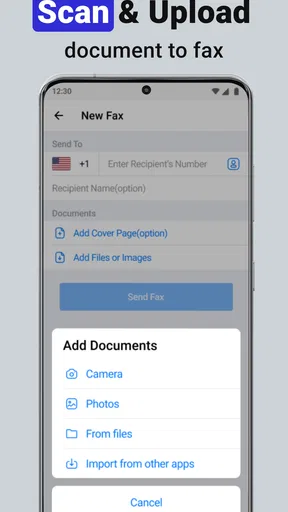
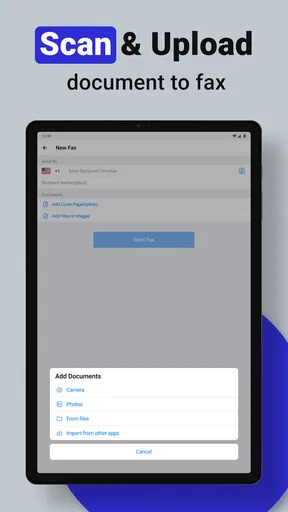
The app’s design is minimalist, which I appreciate. It’s not cluttered with unnecessary features. All the essentials are right at your fingertips, making navigation smooth and straightforward. You can scan documents using your phone’s camera or upload files from cloud storage. The app supports various file formats like PDFs and images, which is a big plus.
For a first-time user, the biggest practical improvement is to prepare the page before opening the sending flow. Lay a paper form flat, use even light, and frame all four edges in the camera view. If the page has faint print, shadows or a fold across important text, take another scan rather than hoping it will become clearer during transmission. For an existing file, open the version you actually intend to send and check that it is complete; a document that looks fine as a thumbnail can still have a missing page or unreadable small print.
Worth Reading Before You Choose

EA SPORTS FC Mobile 26 Is a Bigger Football Game, but It Takes Time

Flipboard Shows What News Apps Must Do Beyond the Feed

Switching to Android Auto Means Rethinking Your Driving Routine

Google Calendar Makes a Crowded Week Easier to Manage

Ludo King Makes the Most of the Minutes Between Plans

Baby Panda World Brings Quick Play to Modern Phones, but Its Game Library Feels Busy
One of the coolest features is the ability to edit documents before sending. Need to add a signature or annotate? No problem. The editing tools are user-friendly and efficient, ensuring your documents are just the way you want them.
Editing is most useful as a last-mile step: add the required mark or signature, then inspect the whole page again. I would avoid treating annotation as a substitute for filling out a form carefully. If a form asks for a date, initials, or a specific attachment, compare the final version with the recipient’s instructions before sending. That simple pause is often more valuable than rushing through a polished-looking scan.
Your first successful fax, step by step
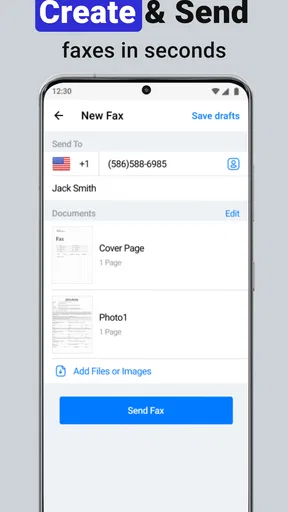
For a low-stress first try, choose a document that is short and easy to inspect, such as a form with a clear destination and no complicated attachments. Prepare the scan or select the file, review the pages, and enter the recipient information slowly. Before you press send, check the number against the original instructions rather than relying on memory or an old contact. Fax mistakes can be awkward because a wrong destination may send private paperwork to someone else.
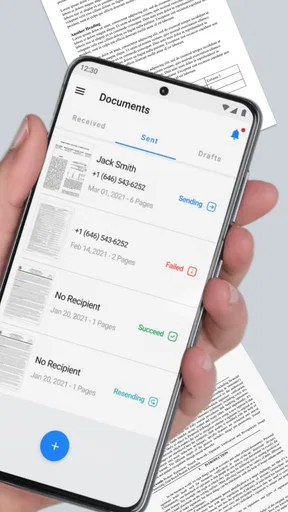
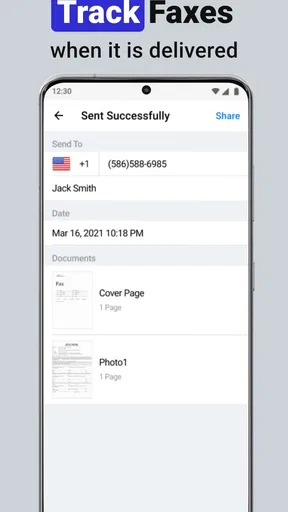
After sending, use the status information to decide what to do next. A status update is useful, but I would not treat the act of tapping send as proof that the recipient has the document. Look for the app’s reported result, and if the matter is time-sensitive, follow the recipient’s preferred process for confirming receipt. This is especially sensible for signed forms, medical paperwork, or anything tied to a deadline.
A realistic example: imagine you are at home and an office asks for a signed authorization before it can proceed. You can photograph or select the completed document, check that the signature and every page are readable, send it from your phone, and keep an eye on the status rather than making a separate trip to locate a fax machine. The convenience is not magic; it comes from having the document ready and taking a moment to verify the destination.
Performance and Reliability
In terms of performance, Smart Fax really shines. Faxes are sent quickly, and I’ve never encountered any glitches or crashes. The app provides real-time status updates, so you’re never in the dark about whether your fax has been delivered. It's reliable, and for me, that reliability gives it a big edge over other apps I've tried.
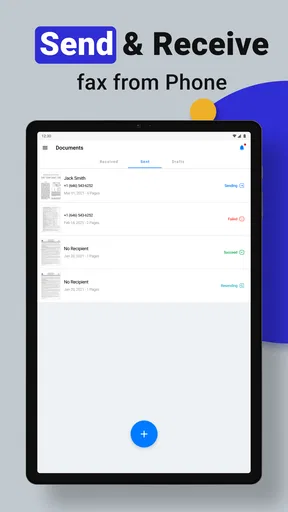
In everyday use, status visibility is more than a nice extra: it helps separate a submission that is still in progress from one that needs attention. If a fax matters, I recommend keeping the document and recipient details nearby until the result is clear. If something does not appear to complete as expected, check the number and file first before trying again; repeated sends without checking can create duplicate paperwork at the other end.
Another thing worth mentioning is the security. The app uses encryption to protect your documents, giving you peace of mind when sending sensitive information. These days, that’s a feature I can’t do without.
Encryption is a meaningful safeguard, but it is not a reason to skip ordinary care with sensitive files. I would avoid leaving a private document open on a shared screen, and I would double-check the destination before sending it. If your workplace has a required system for confidential records or a retention policy, follow that process instead of assuming a mobile fax app replaces it. Smart Fax is most convincing when it handles a discrete task within sensible document habits.
Common questions about files, delivery, and cost
A practical question for a new user is whether a paper document or an existing digital file is the better starting point. If you already have a clean PDF or image, using it avoids an extra capture step. If the original is on paper, the camera scan is the obvious route, but good lighting and a flat page make a real difference. Either way, inspect the pages before sending so you catch cut-off edges or missing content yourself.
Another likely question is whether the app replaces a fax machine for every situation. For a personal form or occasional business document, using a phone can spare you the hassle of finding equipment. For a busy office sending many documents, handling shared records, or following a formal approval chain, a dedicated business setup may be easier to supervise. The right choice depends less on novelty and more on who needs access, how often the team sends faxes, and what recordkeeping it must maintain.
Let’s talk money. The app offers a range of pricing plans to suit different needs, from pay-as-you-go to monthly subscriptions. While the free version is quite limited, the paid plans offer good value for frequent users. I went with a monthly subscription, and it’s been totally worth it for the convenience.
Smart Fax is free to install, while in-app purchases range from $5.99 to $169.99 per item. I would check the available purchase details inside the app before committing, then compare the cost with how often you actually fax. Someone sending one urgent form may value the time saved; someone who rarely encounters fax requests may prefer to avoid an ongoing commitment. The current version is 1.3.4, and it requires Android 6.0 or later on Android devices.
There's also a free trial, which is perfect if you want to test the waters before committing. It’s always nice to have that option, especially if you’re new to mobile faxing.
Before choosing any paid option, I would use the first session to understand the workflow and see whether it suits the documents you send. Make sure you know what the purchase covers and whether it matches your expected use. That is a better basis for deciding than assuming that a low-friction install means every future fax will be free.
When this is the right tool—and when it isn’t
So, why should you give Smart Fax a shot? For starters, it’s perfect for anyone who needs to send faxes on the go. Whether you’re a business professional, a student, or just someone who occasionally needs to send a fax, this app has got you covered. It’s all about convenience, and this app delivers in spades.
I see its strongest fit as someone who occasionally receives a fax request and already keeps documents on a phone: a freelancer sending signed paperwork, a student returning a form, or a small-business owner handling a one-off administrative task. It is also useful when travel or an irregular schedule makes reaching a shared office machine inconvenient. For those users, the main benefit is having a route from document to fax without arranging access to separate equipment.
It is less compelling for someone who never encounters fax requests, or for a team that needs centralized handling and a consistent audit process. In those cases, email with a secure attachment may be simpler if the recipient accepts it, while an office fax service or established business workflow may suit repeated, shared work better. Faxing should be chosen because the recipient requires it, not because every document automatically belongs in a fax app.
Plus, the fact that you can ditch the old-school fax machine and do everything from your phone is a major win in my book. It’s eco-friendly, too—no more paper waste!
That convenience does not eliminate every trade-off. A phone scan still depends on image quality, a digital workflow still needs careful file handling, and app-based sending may not match the oversight of a shared office process. I would use it to avoid unnecessary printing and trips for a specific fax task, while keeping a more controlled option for high-volume or tightly managed records.
Final Thoughts
All in all, Smart Fax: Send Fax from Phone is a must-have for anyone looking to simplify their faxing needs. It’s reliable, efficient, and incredibly easy to use. I’ve been using it for a while now, and I can’t imagine going back to traditional faxing. Give it a try, and you might find yourself wondering how you ever managed without it!
My more measured recommendation is to install it when you have a real fax to send, begin with a straightforward document, and take care over the scan and destination details. If that first task goes smoothly and you expect to fax again, the phone-based approach can be a handy alternative to tracking down a machine. If faxing is rare for you, treat it as an occasional utility and weigh any purchase against that limited need. That way, you get the convenience where it matters without turning a simple one-off task into a larger commitment.
Pros
- Easy-to-use interface for seamless faxing.
- Supports multiple file formats for versatility.
- Quick setup without cumbersome registration.
- Affordable pricing compared to traditional faxing.
- Cloud storage integration for easy access.
Cons
- Limited free credits before requiring purchase.
- Occasional delays in fax delivery.
- Requires stable internet connection.
- Limited customer support options.
- No option to edit files within the app.
FAQs for Smart Fax: Send Fax from Phone
What features does Smart Fax offer for sending faxes?
Smart Fax provides a comprehensive range of features, including the ability to send faxes directly from your phone using your camera or existing documents. It supports multiple file formats like PDF, DOC, and JPG. Additionally, the app offers tracking and confirmation of sent faxes, ensuring reliability and efficiency in communication.
Is Smart Fax compatible with both Android and iOS devices?
Yes, Smart Fax is designed for compatibility with both Android and iOS platforms. This cross-platform support ensures that users can seamlessly send and receive faxes from any mobile device, making it a versatile choice for personal and professional use.
Are there any subscription fees or in-app purchases with Smart Fax?
Smart Fax may offer a range of pricing plans, including a free version with limited features and a premium subscription for enhanced capabilities. Users should check the app store listing for specific pricing details and in-app purchase options to choose the plan that best suits their needs.
How secure is the transmission of faxes through Smart Fax?
Security is a top priority for Smart Fax. The app employs encryption protocols to ensure that all faxes sent and received are protected against unauthorized access. Users can feel confident that their sensitive documents are handled with the utmost security and privacy.
Can I receive faxes on my phone using Smart Fax?
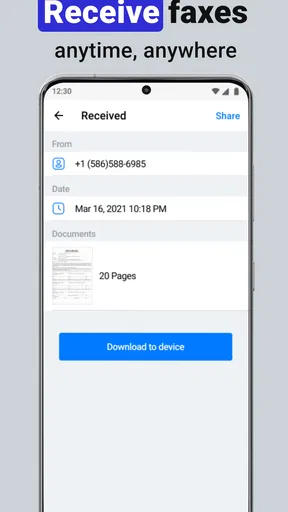
Yes, Smart Fax not only allows sending but also receiving faxes directly on your phone. Users are provided with a dedicated fax number, enabling them to receive faxes as easily as they send them, making it a comprehensive solution for mobile faxing needs.


